
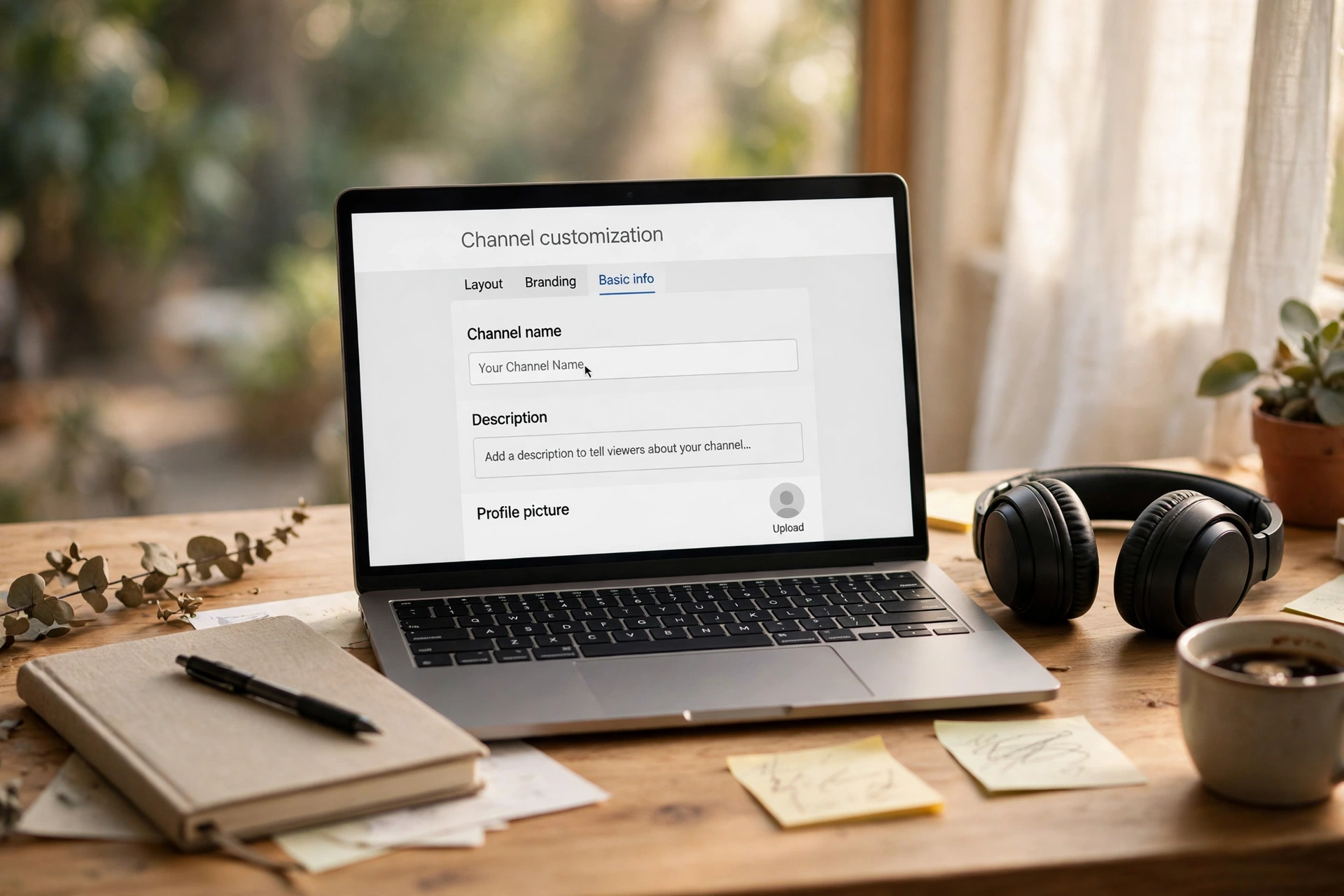
Rebranding, fixing a typo, or outgrowing an old name? Your YouTube channel name is not set in stone. Changing it takes under a minute — but there are three catches most guides skip: a twice-in-14-days limit, a verification badge that disappears, and a new name that can take days to show everywhere. This guide covers the exact steps on desktop and mobile, plus everything to check before you hit Publish.
On desktop, open YouTube Studio → Customization → Profile, type the new name, and click Publish. On mobile, tap your profile picture → View channel → Edit channel, edit the name, and save. You can change it twice in 14 days, the new name may take a few days to appear everywhere, and changing it removes your verification badge.
How to Change Your YouTube Channel Name on Desktop
- Sign in to YouTube Studio — go to studio.youtube.com and make sure you are signed in to the right channel (check the account switcher if you run a brand account).
- Open Customization from the left menu.
- Open the Profile tab. Note: older guides call this the “Basic info” tab — YouTube renamed it, so if a tutorial shows Basic info, its screenshots are outdated but the place is the same.
- Type your new channel name in the Name field. Check the spelling twice — you only get two changes per 14 days.
- Click Publish in the top-right corner. Your channel name is updated, though it may take a few days to display across all of YouTube.
If you also want your channel URL to match, update the handle in the same Profile tab — but remember the handle follows stricter rules (see the table below) and must be unique.
How to Change Your YouTube Channel Name on Mobile
The mobile path is shorter, and it works the same on Android and iPhone.
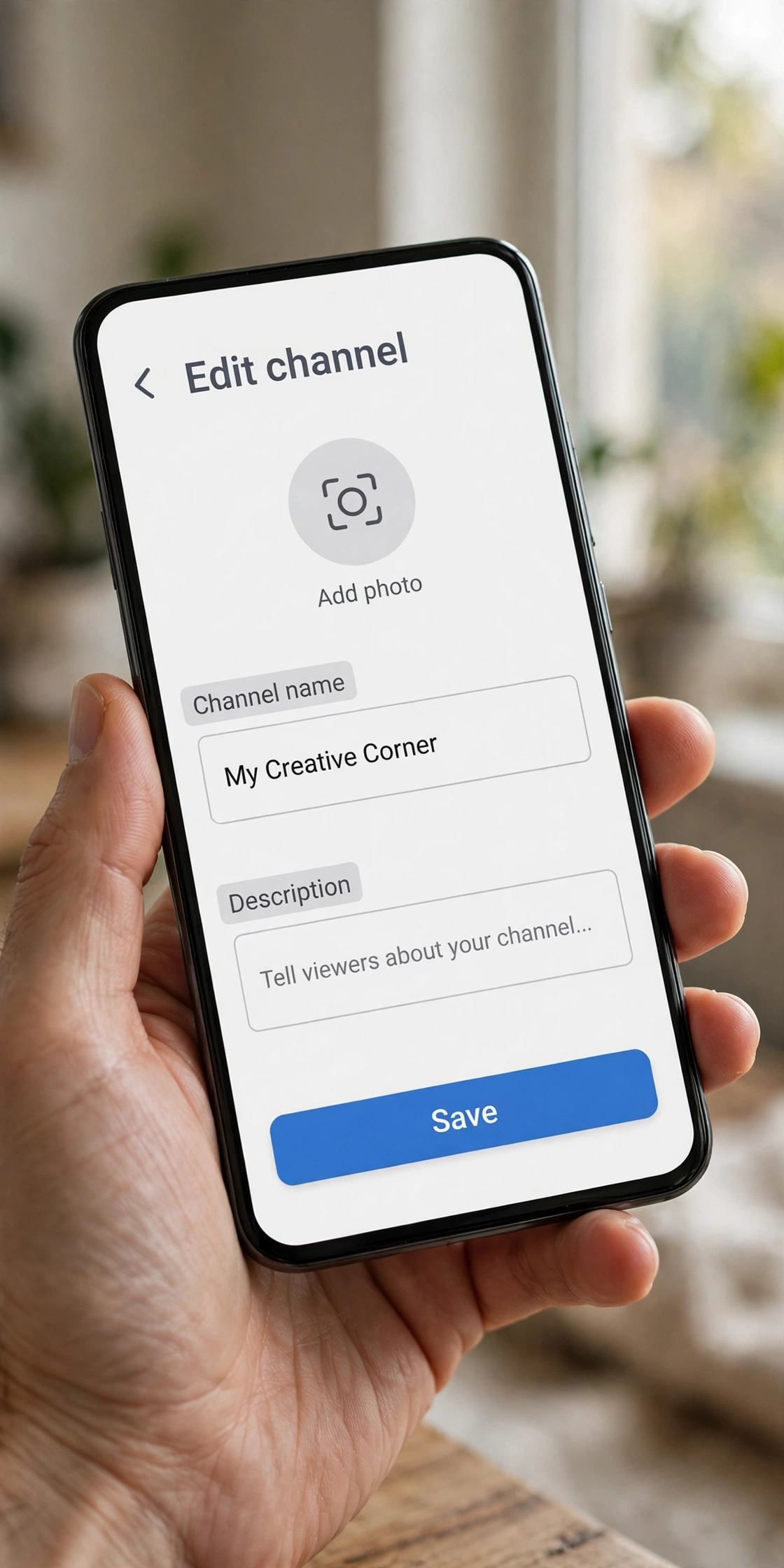
- Open the YouTube app and tap your profile picture.
- Tap View channel to open your channel page.
- Tap Edit channel — on some versions this shows as a pencil icon instead.
- Edit the name field (and the handle or description too, if you want them to match).
- Save — tap the checkmark or Save button to confirm.
You can also do this in the YouTube Studio app: open it, tap your profile picture, choose Edit channel profile, edit the name next to your profile, and save. Handy when you are rebranding on the go.
Channel Name vs Handle: What’s the Difference?
People mix these two up, and the difference decides what you should change. Your channel name is your display name. Your handle is your unique @identity. They are separate settings — changing one does not force you to change the other.
| Channel name | Handle | |
|---|---|---|
| What it is | Display name shown on your channel page, under videos, and in search results | Unique @username in your channel URL (youtube.com/@handle), mentions, and comments |
| Unique? | No — multiple channels can share the same name | Yes — only one channel can hold a handle |
| Characters | Styled fonts usually work for most channels | Plain letters and numbers only, 3–30 characters |
| Changing it | Twice per 14 days; badge removed | Changing it changes your channel URL — update every link that used the old one |
YouTube Channel Name Rules You Must Know
| Rule | What it means |
|---|---|
| Twice in 14 days | You can change your channel name only twice within a 14-day period. Do not burn both changes testing names — decide first, then publish. |
| Verification badge removed | Changing the name removes your verification tick. Verified creators must request verification again after the change. |
| Display delay | The new name may take a few days to update and display across YouTube. If it looks unchanged an hour later, that is normal — wait before assuming it failed. |
| Google Account untouched | Since 2021, renaming your channel does not change your Google Account name or picture. The change is visible on YouTube only. |
| Community Guidelines | The new name must follow YouTube’s Community Guidelines, or the change can be rejected or reversed. |
What to Do After You Change Your Channel Name
- Wait out the display delay. Check your channel page after a few days instead of changing the name again — remember, you only get two changes per 14 days.
- Match the handle only if you need to. If your branding depends on one consistent identity, update the handle in the same Profile tab. If you do, your old youtube.com/@handle URL stops working — update it in video descriptions, social bios, and your website.
- Re-apply for verification if you had it. The badge does not come back on its own after a name change.
- Tell your audience. A short community post (“same channel, new name”) stops subscribers from thinking your channel was sold or hacked when the new name appears.
- Subscribers and videos stay. A name change touches the name only — your subscribers, videos, and watch history are the same channel underneath.
If YouTube Won’t Let You Update Your Name
- Delete name translations first. YouTube’s own help note says: if you cannot update your channel name, make sure any channel name translations are deleted before updating, then retry.
- Check the 14-day limit. If you already changed the name twice in the last 14 days, you must wait out the window — there is no override.
- Check the account. Make sure you are signed in to the right channel, especially if you manage a brand account alongside a personal one.
- Wait for propagation. A name that looks unchanged is usually just the display delay. Give it a few days before trying again — and never burn your second change on impatience.
- Check the handle separately. If the name saved fine but the URL looks wrong, the problem is the handle, not the name — handles must be unique and plain-only.
Style Your New Channel Name After the Change
Once the plain identity is locked in, make it look the part. Our stylish name for YouTube page has channel name fonts you can copy and paste, and the stylish name maker turns any name into 500+ styles for your channel name and video titles. Change the name first, style second — that order keeps your channel searchable while still standing out.
Frequently Asked Questions
How often can I change my YouTube channel name?
Twice within a 14-day period. Plan the name before you publish the change, because a hasty second edit can leave you locked out of a third fix for two weeks.
Will I lose subscribers or videos if I change my channel name?
No. Subscribers, videos, and watch history stay — it is the same channel with a new display name. What changes is the name itself, and your verification badge, which is removed and must be re-applied for.
Does changing my YouTube name change my Google Account name?
No. Since 2021 the two are separate — a channel name change is visible on YouTube only and does not touch your Google Account name or picture.
What is the difference between a channel name and a handle?
The channel name is your display name and does not have to be unique. The handle (@name) is unique, 3–30 plain characters, and forms your channel URL — that is where your stylish name for YouTube styling does not apply, since handles stay plain.
Why isn’t my new channel name showing yet?
YouTube itself says the new name may take a few days to display across the platform. Wait before changing it again — and remember the twice-in-14-days limit.
Can I use stylish fonts in my YouTube channel name?
For the channel name itself, styled Unicode fonts work for most channels — that is what our stylish name maker is for. Your handle, by contrast, must stay plain (3–30 characters), and video titles should stay plain and searchable.
Short version: decide the name first, change it in YouTube Studio → Customization → Profile, expect a few days before it shows everywhere, and re-apply for verification if you had the badge. The whole thing takes under a minute — the only part worth slowing down for is choosing a name you will not want to change twice in two weeks.